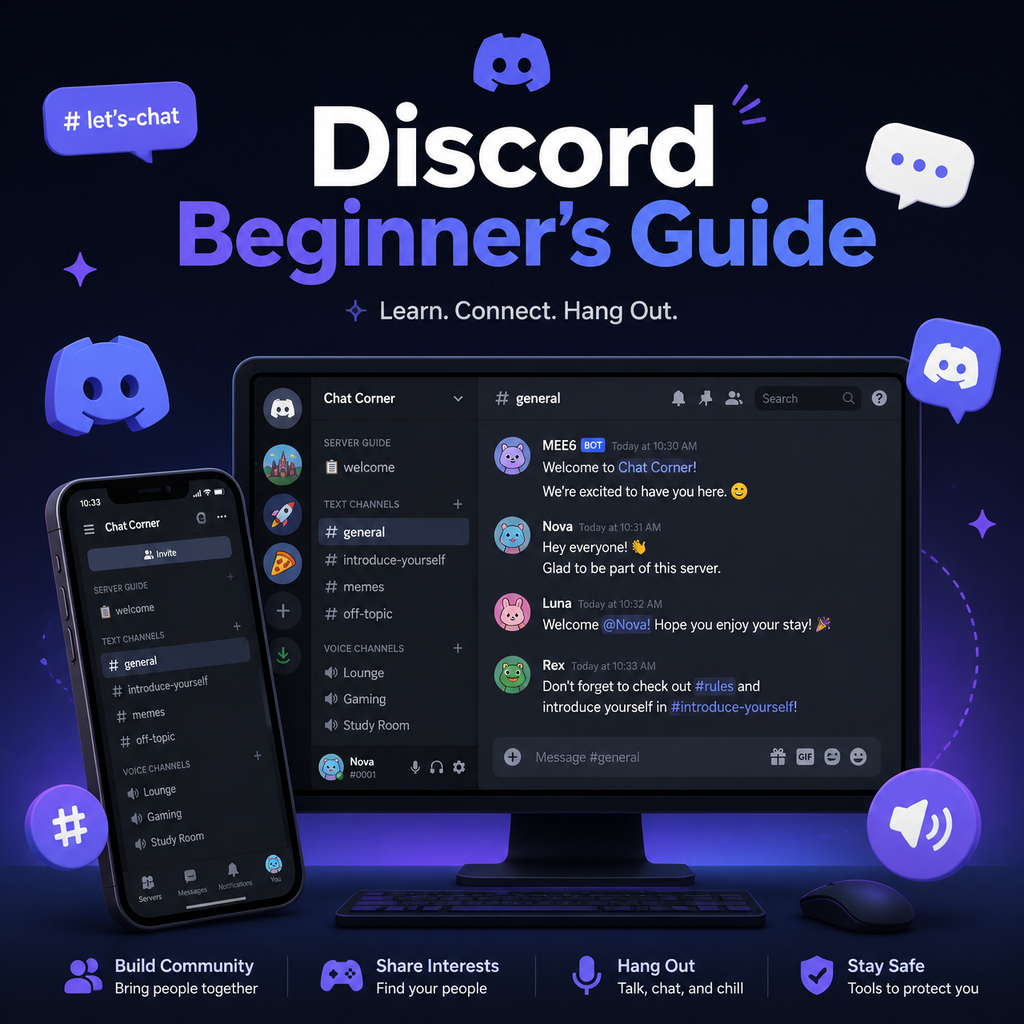
Що таке Discord? Повний посібник для початківців
Розуміння Discord: більше, ніж просто ігри
Discord починався як притулок для геймерів, але перетворився на одну з найуніверсальніших комунікаційних платформ, доступних сьогодні. Чи ви координуєте навчальну групу, керуєте професійною командою чи будуєте спільноту навколо спільної пристрасті, Discord пропонує централізований простір для текстових, голосових та відео взаємодій. Його структура на основі серверів дозволяє створювати організовані спільноти за запрошеннями, які можуть налічувати від кількох друзів до тисяч учасників. Якщо ви новачок у Discord, цей посібник проведе вас через усе, що потрібно знати, щоб впевнено почати.
Отримання додатку: комп'ютер, мобільний та веб
Щоб розпочати свою подорож у Discord, першим кроком є завантаження додатку. Discord безкоштовний для завантаження на Windows, macOS, Linux, iOS та Android. Ви можете завантажити його з офіційного сайту або з магазину додатків вашого пристрою. Не хочете нічого встановлювати? Немає проблем — Discord також пропонує повнофункціональний веб-клієнт, який працює безпосередньо у вашому браузері. Просто перейдіть на discord.com, і ви в грі.
Одне, про що варто пам'ятати: веб-версія не оптимізована для мобільних браузерів, тому якщо ви на телефоні, вам знадобиться нативний додаток для найкращого досвіду.
Створення облікового запису: електронна пошта, верифікація та інше
Коли у вас відкритий додаток, створення облікового запису — це легко. Вам потрібно буде вказати адресу електронної пошти, ім'я користувача та пароль. Discord також запропонує вам встановити відображуване ім'я та вибрати аватар. Важливо використовувати електронну пошту, до якої ви маєте постійний доступ, оскільки вам потрібно буде підтвердити її, щоб активувати свій обліковий запис і розблокувати всі функції.
Після реєстрації перевірте свою поштову скриньку на наявність листа з підтвердженням від Discord. Натисніть кнопку "Verify Email" всередині, і ви офіційно налаштовані. Ви також можете додати телефонну верифікацію для додаткового рівня безпеки. Для цього перейдіть у Налаштування користувача > Мій обліковий запис, натисніть "Додати" поруч із "Номер телефону", введіть свій номер (з правильним кодом країни) та введіть шестизначний код, надісланий на ваш телефон. Це не лише захищає ваш обліковий запис, але й надає додаткові можливості відновлення.
Навігація по інтерфейсу Discord
Макет Discord інтуїтивно зрозумілий, якщо знати, де що знаходиться. На крайній лівій бічній панелі показано іконки ваших серверів та особисті повідомлення. Натискання на сервер відкриває його канали — як текстові, так і голосові — у наступній колонці. Основна область відображає повідомлення чату вибраного каналу або особистої розмови. Праворуч ви побачите список учасників цього сервера, а також їхні ролі та статуси онлайн.
У нижньому лівому куті ви знайдете налаштування користувача, включаючи ваш профіль, елементи керування вимкненням звуку/оглушенням та статус (В мережі, Неактивний, Не турбувати або Невидимий). Рядок пошуку вгорі допомагає знаходити повідомлення, а шестерня налаштувань поруч із ним веде до повної кастомізації облікового запису. Ознайомтеся з цими областями, і ви будете орієнтуватися в Discord як професіонал.
Налаштування вашого досвіду: параметри, які мають значення
Персоналізація Discord під ваші потреби — це частина задоволення. У Налаштуваннях користувача ви можете налаштувати майже все. Вкладка "Зовнішній вигляд" дозволяє перемикатися між світлою та темною темами, а також регулювати колірну схему та рівень масштабування. У "Конфіденційність та безпека" ви контролюєте, хто може надсилати вам особисті повідомлення, додавати вас у друзі та які дані ви надсилаєте в Discord. "Голос та відео" — це місце, де ви налаштовуєте свої пристрої введення та виведення, вмикаєте push-to-talk або регулюєте налаштування камери для відеодзвінків.
Для геймерів "Ігрова активність" інтегрує ваші ігри у ваш профіль, а "Режим стримера" допомагає приховати конфіденційну інформацію під час прямих трансляцій. Ви також можете зв'язати такі облікові записи, як Twitch, Spotify та Steam, у розділі "Підключення", що дозволяє легко ділитися тим, чим ви займаєтесь. Не забудьте налаштувати "Сповіщення", щоб ніколи не пропускати важливі згадки — або вимкнути все, якщо вам потрібна концентрація.
Пошук своєї спільноти: приєднання та створення серверів
Сервери — це серце Discord. Це спільноти за запрошеннями, де ви можете спілкуватися за допомогою тексту, голосу або відео. Приєднатися до сервера легко — просто натисніть на запрошення, надіслане другом або опубліковане в інтернеті. Потрапивши всередину, представтеся та ознайомтеся з правилами в каналах #welcome або #announcements. Вкладки "Тренди" та "Відкриття" також допомагають знаходити публічні сервери на основі ваших інтересів.
Створення власного сервера так само просте. Натисніть значок "+" на лівій бічній панелі, виберіть шаблон, і ви готові будувати. Ви можете створювати різні канали для різних тем, налаштовувати ролі та дозволи, а також запрошувати друзів за посиланням. Чи це приватне місце для зустрічей, чи велика спільнота — у вас повний контроль.
Максимальне використання Discord: поради для безперебійного спілкування
Щоб покращити ваш досвід у Discord, ось кілька швидких порад:
- Опануйте гарячі клавіші: Натискання Ctrl+/ (Windows) або Cmd+/ (Mac) показує список усіх гарячих клавіш для прискорення навігації.
- Використовуйте markdown: Форматуйте свої повідомлення за допомогою *курсиву*, **жирного шрифту** та `коду`, щоб додати акценту.
- Будьте в курсі: Встановіть власні правила сповіщень для великих серверів; клацніть правою кнопкою миші на сервері, щоб повністю вимкнути його звук або налаштувати сповіщення для конкретних каналів.
- Керуйте друзями: Додавайте друзів, клацнувши правою кнопкою миші на будь-якому користувачі та вибравши "Додати друга", або використовуйте формат тегу Discord (наприклад, username#1234).
- Голос та відео: Натисніть на голосовий канал, щоб просто зайти — не потрібно дзвонити. Ви також можете ділитися екраном для презентацій або ігрових трансляцій.
З цими основами ви готові зануритися у яскравий світ Discord. Чи ви тут, щоб спілкуватися, співпрацювати чи будувати щось нове, гнучкість Discord гарантує, що ви знайдете своє місце. Тож дерзайте, досліджуйте свій перший сервер і спілкуйтеся з іншими по-новому.