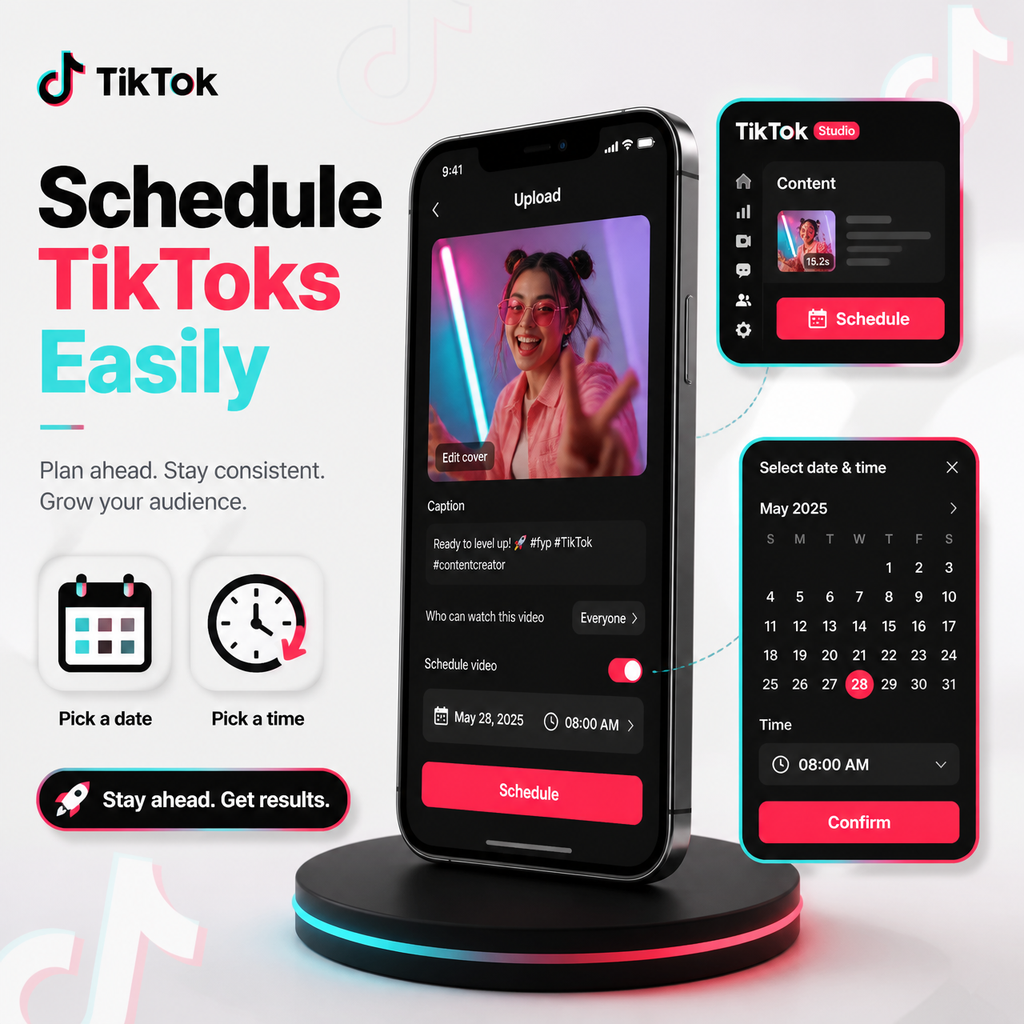
Cách lên lịch đăng bài TikTok trên điện thoại và máy tính
Tại sao lên lịch đăng bài TikTok là một bước ngoặt
Thời điểm là yếu tố quan trọng nhất trên TikTok. Đăng bài khi khán giả của bạn hoạt động tích cực nhất có thể tạo nên sự khác biệt giữa một video thất bại và một video lan truyền. Nhưng việc luôn trực tuyến để đăng bài vào thời điểm hoàn hảo là không thực tế—đặc biệt đối với những nhà sáng tạo và doanh nghiệp đang phải xử lý nhiều trách nhiệm cùng lúc. Đó là lúc lên lịch phát huy tác dụng. Bằng cách lên kế hoạch nội dung trước, bạn có thể duy trì nhịp đăng bài nhất quán, giải phóng thời gian của mình và đảm bảo video của bạn đến đúng đối tượng vào đúng thời điểm.
Trong hướng dẫn này, chúng tôi sẽ hướng dẫn bạn mọi thứ cần biết về cách lên lịch đăng bài TikTok trên cả điện thoại và máy tính. Bạn sẽ tìm hiểu về các tùy chọn lên lịch gốc của TikTok, cách sử dụng chúng và khi nào nên sử dụng các công cụ của bên thứ ba như Hootsuite để linh hoạt hơn. Dù bạn là nhà sáng tạo độc lập hay là một phần của nhóm truyền thông xã hội, bạn sẽ có được một kế hoạch hành động rõ ràng để tối ưu hóa quy trình làm việc trên TikTok của mình.
Những điều bạn cần biết trước khi lên lịch
Trước khi đi sâu vào cách thực hiện, điều quan trọng là phải hiểu rõ tình hình. Bộ lên lịch tích hợp của TikTok—TikTok Studio—là một công cụ mạnh mẽ, nhưng nó có những điểm hạn chế. Dưới đây là những điều bạn cần lưu ý:
- Chỉ dành cho máy tính: Tính năng lên lịch gốc của TikTok chỉ khả dụng trên máy tính. Bạn không thể lên lịch trực tiếp từ ứng dụng di động.
- Loại tài khoản quan trọng: Bạn cần tài khoản Creator hoặc Business để lên lịch. Nếu bạn đang sử dụng tài khoản cá nhân, hãy chuyển đổi qua Cài đặt > Quản lý tài khoản trong ứng dụng.
- Giới hạn 10 ngày: Bạn chỉ có thể lên lịch đăng bài tối đa 10 ngày trước với TikTok Studio. Đối với kế hoạch dài hạn hơn, các công cụ của bên thứ ba là lựa chọn phù hợp.
- Không thể chỉnh sửa sau khi lên lịch: Khi video đã được lên lịch, bạn không thể chỉnh sửa nó. Bạn sẽ cần xóa và tải lên phiên bản mới nếu cần thay đổi.
Với những điều cơ bản này, hãy cùng khám phá các tùy chọn lên lịch của bạn một cách chi tiết.
Cách lên lịch đăng bài TikTok trên máy tính
Lên lịch trên máy tính là cách đơn giản nhất để sử dụng bộ lên lịch gốc của TikTok. Dưới đây là hướng dẫn từng bước:
Sử dụng TikTok Studio
- Đăng nhập vào TikTok trên máy tính của bạn. Truy cập tiktok.com hoặc studio.tiktok.com và đăng nhập bằng tài khoản Creator hoặc Business của bạn.
- Điều hướng đến TikTok Studio. Nhấp vào biểu tượng hồ sơ của bạn và chọn "TikTok Studio" từ menu, hoặc nhấp vào nút tải lên (biểu tượng đám mây/mũi tên) ở góc trên bên phải.
- Tải lên video của bạn. Nhấp vào "Chọn tệp" để chọn video của bạn. TikTok chấp nhận tệp MP4 theo tỷ lệ 9:16, tối đa 10 phút và dưới 10GB.
- Thêm chi tiết. Điền chú thích, hashtag, đề cập và ảnh bìa của bạn. Điều chỉnh cài đặt quyền riêng tư như bình luận, duet và stitch.
- Lên lịch đăng bài của bạn. Trong phần "Thời gian đăng", bật tùy chọn "Lên lịch". Chọn ngày và giờ mong muốn—nhớ rằng, tối đa 10 ngày trước—và nhấp vào "Lên lịch".
Mẹo quan trọng khi lên lịch trên máy tính
- Kiểm tra lại múi giờ của bạn: TikTok sử dụng múi giờ của máy tính để lên lịch. Đảm bảo nó được đặt chính xác để tránh đăng bài sai thời điểm.
- Xem xét mọi thứ: Vì bạn không thể chỉnh sửa sau khi lên lịch, hãy kiểm tra kỹ lưỡng lỗi chính tả, cài đặt và chất lượng video trước khi xác nhận.
Cách lên lịch đăng bài TikTok trên điện thoại
Mặc dù ứng dụng di động của TikTok thiếu tính năng lên lịch, bạn vẫn có các tùy chọn để lên lịch từ điện thoại của mình. Dưới đây là cách thực hiện:
Tùy chọn 1: Sử dụng TikTok Studio trong trình duyệt di động
Bạn có thể truy cập bộ lên lịch gốc của TikTok qua trình duyệt web trên điện thoại của mình. Dưới đây là cách thực hiện:
- Mở Safari, Chrome hoặc trình duyệt ưa thích trên điện thoại của bạn.
- Truy cập studio.tiktok.com và đăng nhập vào tài khoản của bạn.
- Nhấp vào nút tải lên (thường là biểu tượng dấu cộng) và chọn video từ thư viện ảnh của bạn.
- Thêm chú thích, hashtag, ảnh bìa và cài đặt quyền riêng tư.
- Nhấp vào "Lên lịch", chọn ngày và giờ, rồi xác nhận.
Phương pháp này cung cấp cho bạn cùng cửa sổ lên lịch 10 ngày như trên máy tính, nhưng nó hơi cồng kềnh hơn so với trải nghiệm ứng dụng gốc.
Tùy chọn 2: Sử dụng công cụ lên lịch của bên thứ ba
Để có trải nghiệm lên lịch trên điện thoại mạnh mẽ hơn, hãy cân nhắc sử dụng nền tảng quản lý truyền thông xã hội như Hootsuite hoặc Buffer. Các công cụ này cung cấp ứng dụng chuyên dụng và các tính năng nâng cao như tự động lên lịch và đăng bài chéo nền tảng.
Với Hootsuite, bạn có thể lên lịch đăng bài TikTok trực tiếp từ ứng dụng di động. Dưới đây là tổng quan nhanh:
- Tải xuống ứng dụng Hootsuite và đăng nhập.
- Kết nối tài khoản TikTok của bạn nếu bạn chưa làm điều đó.
- Nhấp vào "Soạn" và chọn hồ sơ TikTok của bạn.
- Tải lên video từ thư viện điện thoại của bạn hoặc quay video mới.
- Viết chú thích và điều chỉnh cài đặt.
- Chọn "Tự động lên lịch" để Hootsuite chọn thời điểm tốt nhất hoặc "Lên lịch tùy chỉnh" để tự đặt.
Khi nào nên sử dụng công cụ của bên thứ ba để lên lịch TikTok
Mặc dù TikTok Studio miễn phí và được tích hợp sẵn, nó có một số hạn chế có thể khiến công cụ như Hootsuite phù hợp hơn với quy trình làm việc của bạn. Hãy cân nhắc sử dụng công cụ của bên thứ ba nếu bạn:
- Cần lên lịch trước hơn 10 ngày: Đối với kế hoạch nội dung dài hạn, các công cụ bên ngoài thường cho phép bạn lên lịch trước nhiều tuần hoặc nhiều tháng.
- Quản lý nhiều kênh truyền thông xã hội: Nếu bạn đăng cùng một video lên Instagram Reels, YouTube Shorts và TikTok, một công cụ hỗ trợ đăng chéo sẽ giúp bạn tiết kiệm rất nhiều thời gian.
- Đánh giá cao sự cộng tác nhóm: Nhiều công cụ cung cấp quy trình phê duyệt, để nhóm của bạn có thể xem xét và phê duyệt bài đăng trước khi chúng được công khai.
- Muốn có thời điểm đăng bài dựa trên dữ liệu: Tính năng "Thời điểm được đề xuất" của Hootsuite phân tích hoạt động của khán giả để đề xuất khung thời gian đăng bài tối ưu.
Tuy nhiên, nếu bạn là nhà sáng tạo độc lập thích sự đơn giản, TikTok Studio có thể là tất cả những gì bạn cần.
Cách kiểm tra xem bài đăng TikTok đã lên lịch của bạn đã được đăng chưa
Sau khi bạn đã lên lịch một bài đăng, bạn sẽ muốn xác minh rằng nó đã được xuất bản thành công. Dưới đây là ba cách dễ dàng để kiểm tra:
- Kiểm tra hồ sơ TikTok của bạn: Mở TikTok trên thiết bị của bạn và tìm video trên hồ sơ của bạn. Nếu nó ở chế độ công khai, nó sẽ xuất hiện như bất kỳ bài đăng nào khác.
- Xem lại TikTok Studio: Trên máy tính, đi tới TikTok Studio > Bài đăng. Các bài đăng đã lên lịch xuất hiện trong tab "Đã lên lịch" riêng biệt. Sau thời gian đã lên lịch, chúng sẽ chuyển sang tab "Bài đăng".
- Kiểm tra Planner của Hootsuite: Nếu bạn sử dụng Hootsuite, hãy mở Planner và kiểm tra xem trạng thái bài đăng đã thay đổi từ "Đã lên lịch" thành "Đã xuất bản" chưa.
Mẹo chuyên nghiệp để lên lịch thành công
Để tận dụng tối đa việc lên lịch, hãy ghi nhớ các chiến lược chuyên gia sau:
- Đăng bài khi khán giả của bạn trực tuyến: Sử dụng phân tích để xác định thời điểm hoạt động cao điểm của người theo dõi. Phân tích của TikTok có thể cho bạn biết khi nào khán giả của bạn tương tác nhiều nhất.
- Duy trì sự nhất quán: Đặt mục tiêu 3-5 bài đăng mỗi tuần để giữ nội dung mới mẻ mà không làm bạn quá tải.
- Tính đến múi giờ: Nếu khán giả của bạn trải rộng trên nhiều múi giờ, hãy lên lịch một cách chiến lược để tiếp cận phần lớn khán giả.
- Chừa chỗ cho các xu hướng: Đừng lên lịch quá nhiều. Giữ một số linh hoạt để bắt kịp các âm thanh hoặc thử thách đang thịnh hành trong thời gian thực.
Bằng cách thành thạo việc lên lịch, bạn sẽ không bao giờ bỏ lỡ khung thời gian đăng bài quan trọng nữa. Cho dù bạn chọn công cụ gốc của TikTok hay nền tảng của bên thứ ba, khả năng lên kế hoạch trước là điều bắt buộc đối với bất kỳ nhà sáng tạo TikTok nghiêm túc nào. Vì vậy, hãy lên lịch cho loạt nội dung tiếp theo của bạn và xem mức độ tương tác của bạn tăng vọt mà không cần bị ràng buộc vào màn hình.