How To Make Your Own Discord Server On Android: 6 Easy Steps
Getting Started: Install Discord and Create Your Account
Before you can build your own Discord server on Android, you'll need the app and a Discord account. Head to the Google Play Store, search for Discord, and tap Install. Once it's downloaded, open the app and sign up. If you're new, tap Register and enter your display name, username, email address, and a secure password. Already have an account? Just log in. Don't forget to verify your email—this step is crucial for account recovery and unlocking all features. With your account ready, you're all set to dive into server creation.
Step 1: Access the Server Creation Menu
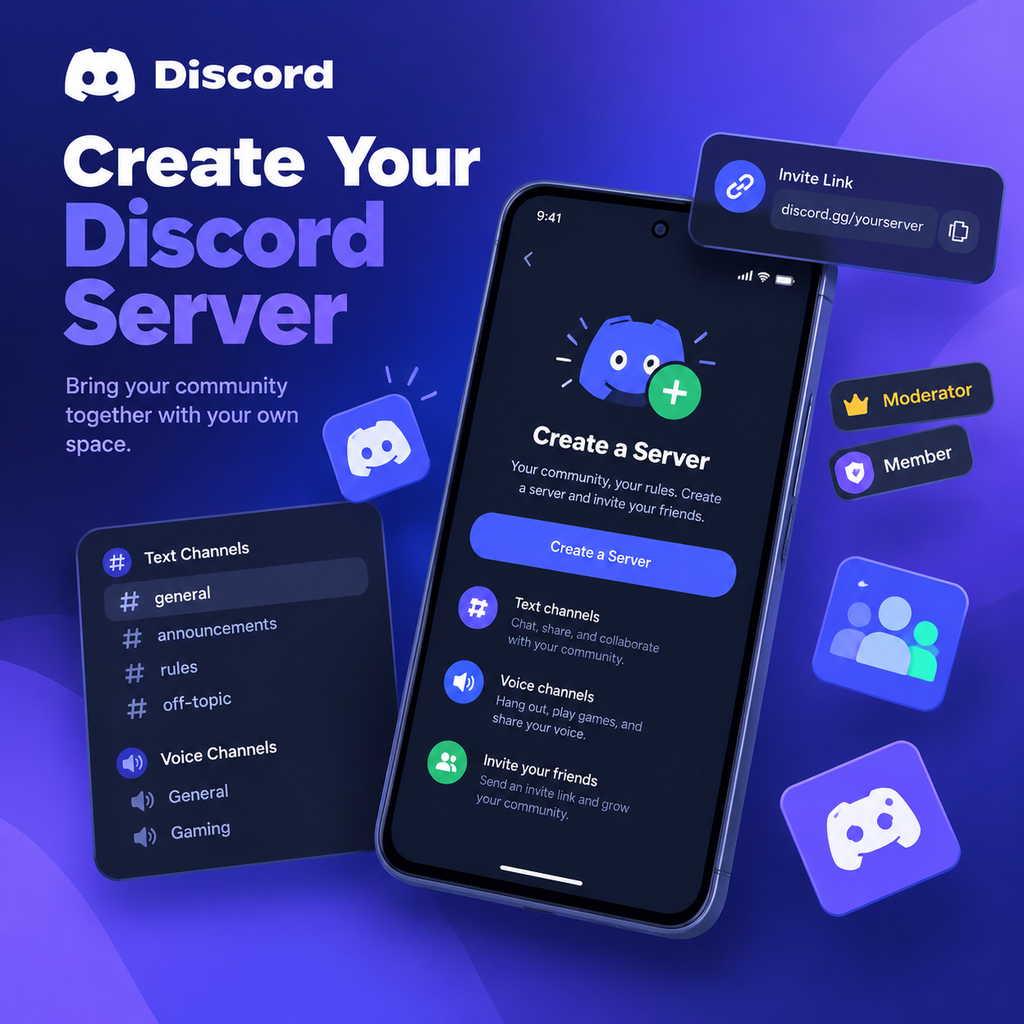
Open the Discord app on your Android device. You'll land on the home screen, where you'll see a list of your current servers on the left side (you might need to tap the hamburger menu icon in the top-left corner to reveal it). At the bottom of this server list, tap the green plus icon. This opens a menu with two options: "Join a Server" and "Create a Server." Select "Create a Server" to start building your own community.
Quick Tip: Using Templates
Discord offers templates for common server types like gaming, study groups, or community hubs. These can save you time by pre-populating channels and roles. If you're new to server setup, consider starting with a template and customizing it later.
Step 2: Choose Your Server Type and Name It
After tapping "Create a Server," Discord asks you to tell it how you plan to use the server. You'll see options like "For me and my friends" or "For a club or community." This choice helps Discord suggest appropriate settings, but you can always tweak them later. Pick the one that fits best.
Next, you'll name your server. Choose a name that reflects your community's purpose—something catchy yet clear. You can also upload an icon (server avatar) to make it recognizable. Tap "Create Server" when you're done. Congratulations, your server is now live!
Step 3: Set Up Channels for Text and Voice
Channels are the heart of your server, where conversations happen. By default, Discord creates a "#general" text channel and a "General" voice channel. To add more, tap the three-dot menu next to a category (or long-press a channel) and select "Create Channel." Choose between text or voice, give it a name (lowercase with hyphens is best, like "#gaming-chat"), and decide if it should be private (only certain roles can access). You can drag and drop channels to reorder them—just press and hold, then slide. Organize channels into categories to keep things tidy.
Pro Tip: Channel Permissions
For advanced control, set permissions per channel. For example, you might want a "#staff" channel visible only to moderators. Tap the channel settings (gear icon) and adjust permissions under the "Permissions" tab.
Step 4: Invite Friends and Build Your Community
A server is nothing without its members. To invite people, tap your server name at the top, then select "Invite People." Discord generates an invite link that you can share via messaging apps, social media, or email. You can set the link to expire after a certain time or number of uses, and grant temporary membership if needed.
For a more personal touch, you can directly invite friends from your friends list. Tap the "Invite" button next to their name. As your community grows, consider creating roles to manage permissions. Tap "Server Settings" > "Roles" to create roles like "Moderator" or "Member" and assign specific abilities.
Step 5: Customize Roles and Permissions
Roles are powerful tools for managing your server. They define what members can do—from sending messages to kicking others. To create a role, go to "Server Settings" > "Roles" and tap the plus icon. Name the role, choose a color, and toggle permissions on or off. You can assign roles by tapping a member's name and selecting "Roles."
It's wise to have a hierarchy: place moderation roles above regular members. Also, consider creating a "Muted" role with restricted permissions for rule-breakers. Remember, the default "@everyone" role applies to all members, so be cautious when granting permissions there.
Step 6: Fine-Tune Your Server with Settings and Moderation
Now that your server is set up, take some time to configure settings for a smooth experience. Tap your server name and go to "Server Settings." Here, you can adjust overview details, enable moderation features like "Verification Level" to prevent spam, and set up a welcome screen. You can also integrate bots for automation—like a music bot or a moderation bot. To add a bot, you'll need to invite it via its website or Discord bot list.
Finally, establish community guidelines. Create a "#rules" channel and pin a message outlining expected behavior. As your server grows, you might need to appoint moderators. Use the roles you created earlier to give them the necessary powers.
Innovative Insight: Leveraging Server Insights
Don't forget to check "Server Insights" under settings. This feature provides analytics on member activity, helping you understand peak times and popular channels. Use this data to optimize your server's layout and engagement strategies, ensuring your community thrives.
Building a Discord server on Android is straightforward and rewarding. With these six steps, you're well on your way to creating a vibrant space for connection. So go ahead—tap that plus icon and start building your digital haven today!